
Compose is the best library to write desktop applications. Yet, I had trouble finding a minimal setup to start a Compose Desktop project. Wizards and examples generally presented a multiplatform project, with a complex structure. If all you need it so add UI to your scripts or make a minimal desktop application, you don't need it all. Here I describe everything you need to introduce Compose Desktop to your project.
Apparently, setting up Compose requires lots of dependencies. This is an old Android tradition to complicate project configurations as much as possible. Let's start from plugins. Those need to be at the top of your
build.gradle.kts file:plugins { kotlin("jvm") version "2.2.20" application id("org.jetbrains.compose") version "1.10.0-beta01" id("org.jetbrains.kotlin.plugin.compose") version "2.2.20" id("org.jetbrains.compose.hot-reload") version "1.0.0-rc02" } repositories { mavenCentral() google() }
First two dependencies are required to use Kotlin and to define an application. The next two are required to use Compose. The last one is optional, it enables Hot Reload, which is a great feature that allows you to see changes in your UI immediately, without restarting the application.
To the dependencies! The most important dependency is
compose.desktop.currentOs (this property comes from a plugin). I’d also strongly recommend adding Material3 and Resources dependencies, as it’s hard to build anything useful without them:dependencies { // ... implementation(compose.desktop.currentOs) // Required to use Material3 components (Scaffold, Button, Text, etc.) implementation("org.jetbrains.compose.material3:material3:1.9.0-beta03") // Required to use resources (images, strings, etc.) implementation("org.jetbrains.compose.components:components-resources:1.10.0-beta01") }
If you plan to do add some logic (view models, services), you’ll most likely need the following dependencies. However, for minimal project they aren’t required:
dependdependenciesen {
    // ...

    // Optional: Needed to use lifecycle-aware functions, like collectAsStateWithLifecycle()
    implementation("org.jetbrains.androidx.lifecycle:lifecycle-runtime-compose:2.9.5")

    // Optional: Needed to use Dispatchers.Main
    implementation("org.jetbrains.kotlinx:kotlinx-coroutines-swing:1.10.2")
}
There is also a topic of previews. To see them, you need another dependency, but currently it won't help you on desktop anyway. Previews are currently not supported on desktop, even though they are supported in common modules. This is strange to say the least, but hopefully it will be fixed in the future.
dependencies {
    // ...

    // Currently redundant because previews are not supported on desktop
    implementation("org.jetbrains.compose.ui:ui-tooling-preview:1.10.0-beta01")
}
Compose supports resources, like images, icons, strings, fonts, or files. For storing them, define
composeResources folder inside main. Inside it, you can define drawable folder for images and icons, font folder for fonts, and values folders (you can localize it) for strings. You can find all details about defining and using them here.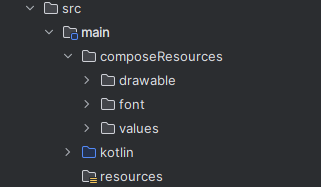
In our minimal project, I defined single image named
compose-multiplatform.xml, which is a vector image with Compose logo. We refer resources using Res object, then drawable to refer to drawable, and resource name. So to refer this particular object, I need to use Res.drawable.compose_multiplatform. In Compose, I can use this image using painterResource, that can be used as an argument to Image.Image(painterResource(Res.drawable.compose_multiplatform), "Compose Logo")
Finally, the code! We first need
main function as a starting point for execution. To start Compose, we use Window function, with title and close handler. It can be further customized (icon, size, etc.) but this is the typical starter:fun main(): Unit = application { Window( onCloseRequest = ::exitApplication, title = "KotlinProject", ) { App() } }
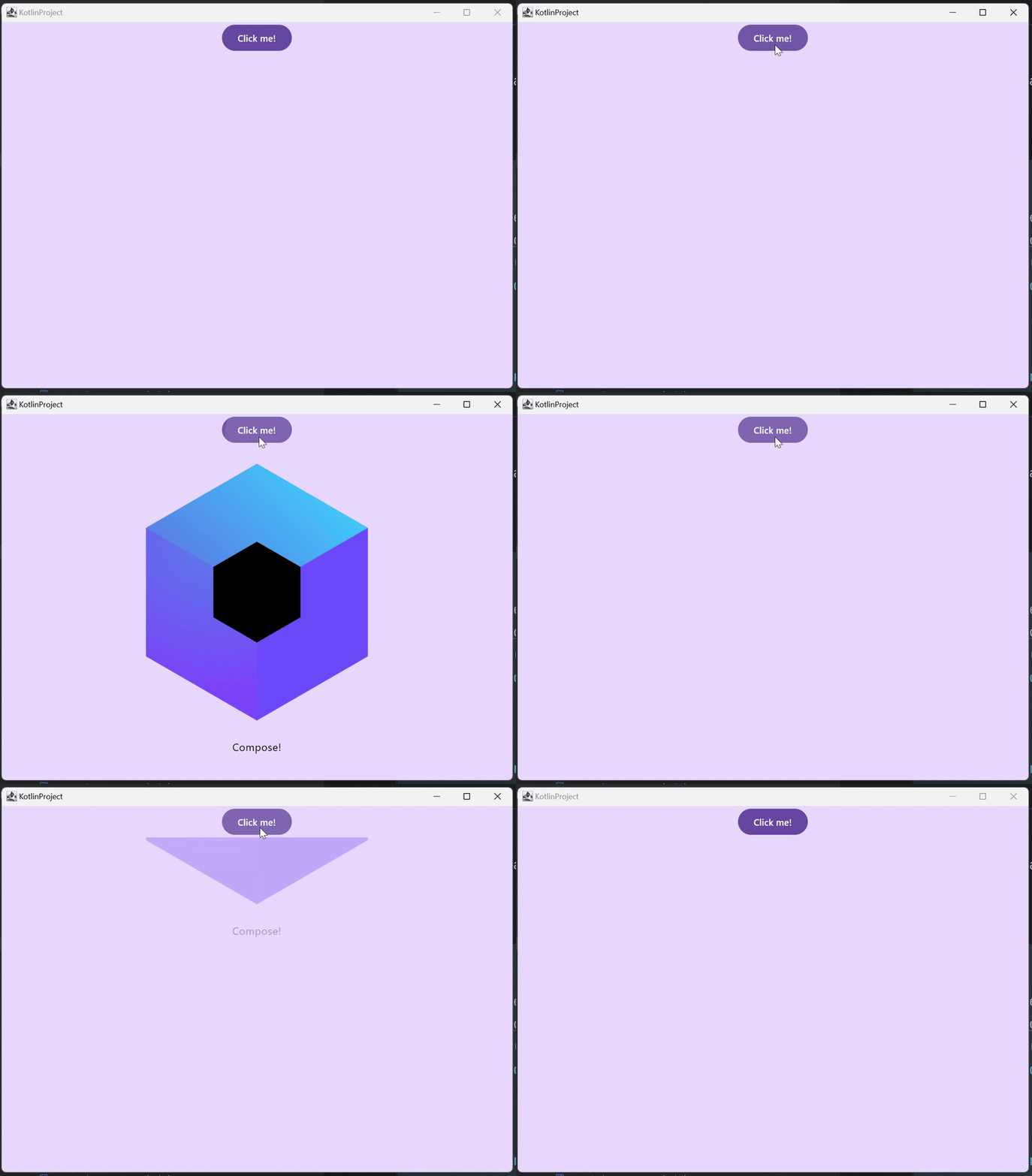
App here is already a component, and you can implement it however you want. I used autogenerated starter, that shows resource use and animation:import androidx.compose.animation.* import androidx.compose.animation.core.* import androidx.compose.foundation.* import androidx.compose.foundation.layout.* import androidx.compose.foundation.text.* import androidx.compose.material3.* import androidx.compose.runtime.* import androidx.compose.runtime.saveable.* import androidx.compose.runtime.snapshots.* import androidx.compose.ui.* import androidx.compose.ui.draw.* import androidx.compose.ui.input.pointer.* import androidx.compose.ui.unit.* import androidx.compose.ui.window.* import androidx.compose.ui.geometry.* import androidx.compose.ui.graphics.* import androidx.compose.ui.graphics.vector.* import androidx.compose.ui.graphics.drawscope.* import androidx.compose.ui.semantics.* import androidx.compose.ui.text.font.* import androidx.compose.ui.text.style.* import androidx.compose.ui.text.input.* import androidx.compose.ui.layout.* import androidx.compose.ui.platform.* import androidx.compose.ui.node.* import androidx.compose.ui.text.* import androidx.compose.foundation.lazy.grid.* import androidx.compose.foundation.selection.* import androidx.compose.foundation.shape.* import androidx.compose.foundation.gestures.* import androidx.compose.foundation.lazy.* import androidx.compose.foundation.interaction.* import androidx.lifecycle.compose.* import kotlinx.browser.document import kotlinx.coroutines.* import kotlinx.coroutines.flow.* import kotlin.math.* //sampleStart @Composable fun App() { MaterialTheme { var showContent by remember { mutableStateOf(false) } Column( modifier = Modifier .background(MaterialTheme.colorScheme.primaryContainer) .safeContentPadding() .fillMaxSize(), horizontalAlignment = Alignment.CenterHorizontally, ) { Button(onClick = { showContent = !showContent }) { Text("Click me!") } AnimatedVisibility(showContent) { Column( modifier = Modifier.fillMaxWidth(), horizontalAlignment = Alignment.CenterHorizontally, ) { Image(painterResource(Res.drawable.compose_multiplatform), "Compose Logo") Text("Compose!") } } } } } //sampleEnd
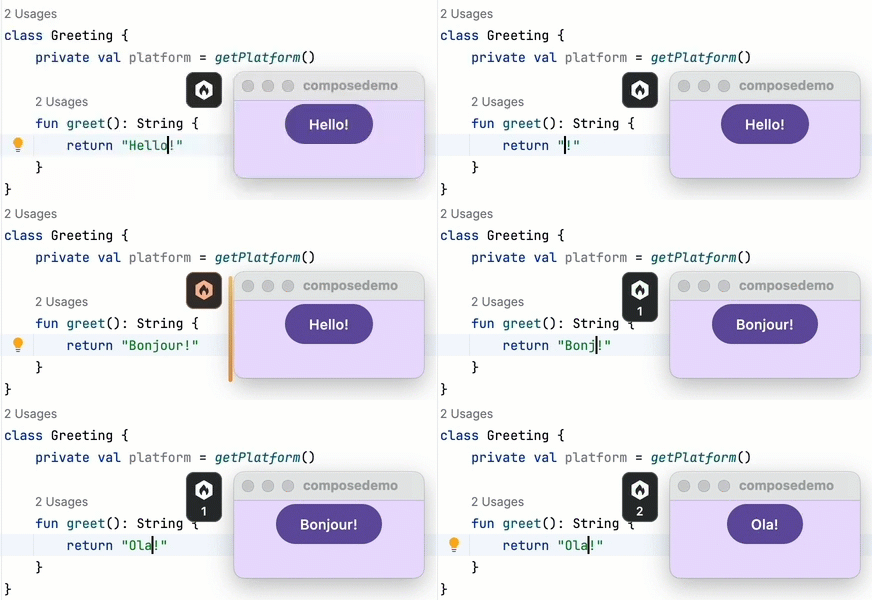
Compose Desktop doesn't support previews, but it offers an amazing hot reload experience. Check it out! Make any change in code while your application is running. You should see this change applied in UI. If you don't, see docs.
Compose is a great desktop framework. In this article I presented it's minimal setup. You need to add Compose plugins, dependencies, and define resources folder. Finally, you can start Compose using
Window function inside main. Enjoy building desktop applications with Compose!